Jev for Gmail
Which email should you read first? This Chrome extension adds priority scores to your Gmail Primary inbox.
Created by Ki-Hyun Jeon · Powered by TypeSafe Jev
Start with the score beside each email
Scores consider required action, urgency, importance, and whether the email has already been handled. Emails, labels, and read status remain unchanged.
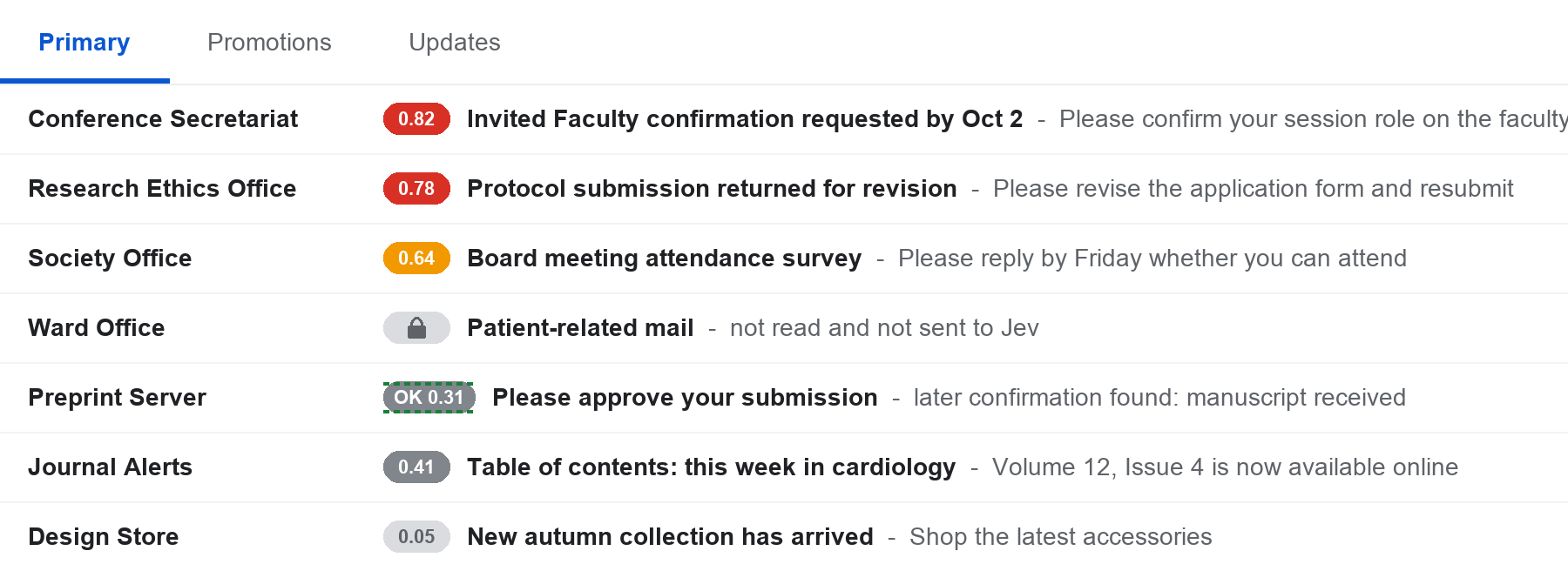
Red indicates 0.7 or higher; orange indicates 0.5 or higher. Hover over a badge to see the scoring details.
Installation
- Jev for Gmail download page
Choose Code → Download ZIP and extract it. Keep the folder after installation.
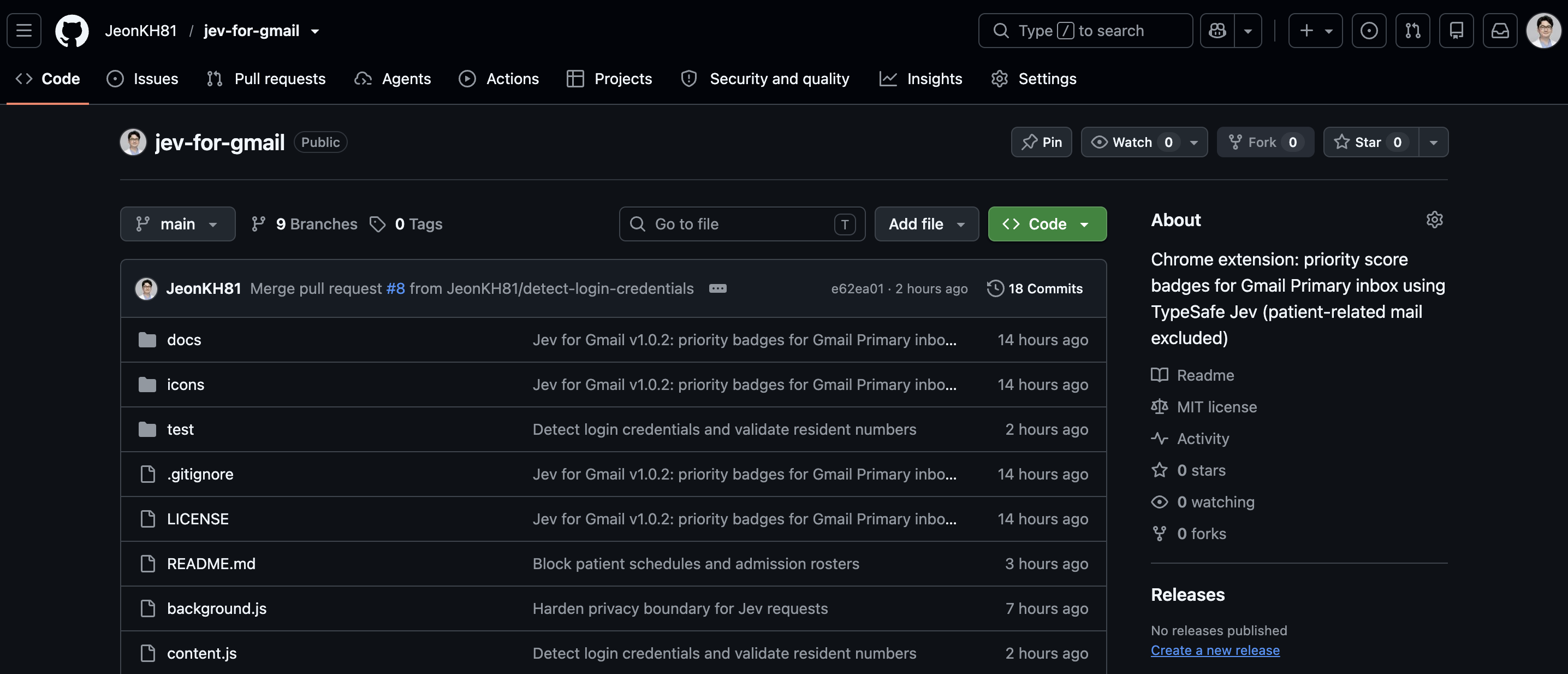
Click the green Code button, then select Download ZIP. Enter the address below in Chrome and enable Developer mode in the upper-right corner.
chrome://extensionsClick Load unpacked and select the folder containing manifest.json.
In settings, enter your TypeSafe API key, role, and email. You can also exclude senders of patient-related emails.
Get a TypeSafe keySave, test the connection, and refresh Gmail. Look for badges on emails from the last seven days in the Primary tab.
Use it in your daily routine
Review high-scoring emails first and decide yourself whether to reply. Use the extension toolbar icon to control badges and settings.
Before you start
Redacted subjects and body excerpts are sent to TypeSafe. Emails with detected sensitive information, including patient details, are excluded with a lock badge. Filters may miss personal information.
TypeSafe usage is billed separately. Scores are a guide to reading priority.
Source for setup and features: Jev for Gmail README